Team
Meet our team
Behind DevicePrep is a small team of editors and builders focused on one outcome: helping you verify your setup and fix issues fast before your next call.
How we work
We treat troubleshooting like a product: measure first, fix one layer at a time, then re-test to confirm. When possible, tools generate a copyable report so you can share evidence with IT or support.
Learn more in our editorial policy or reach us via contact.
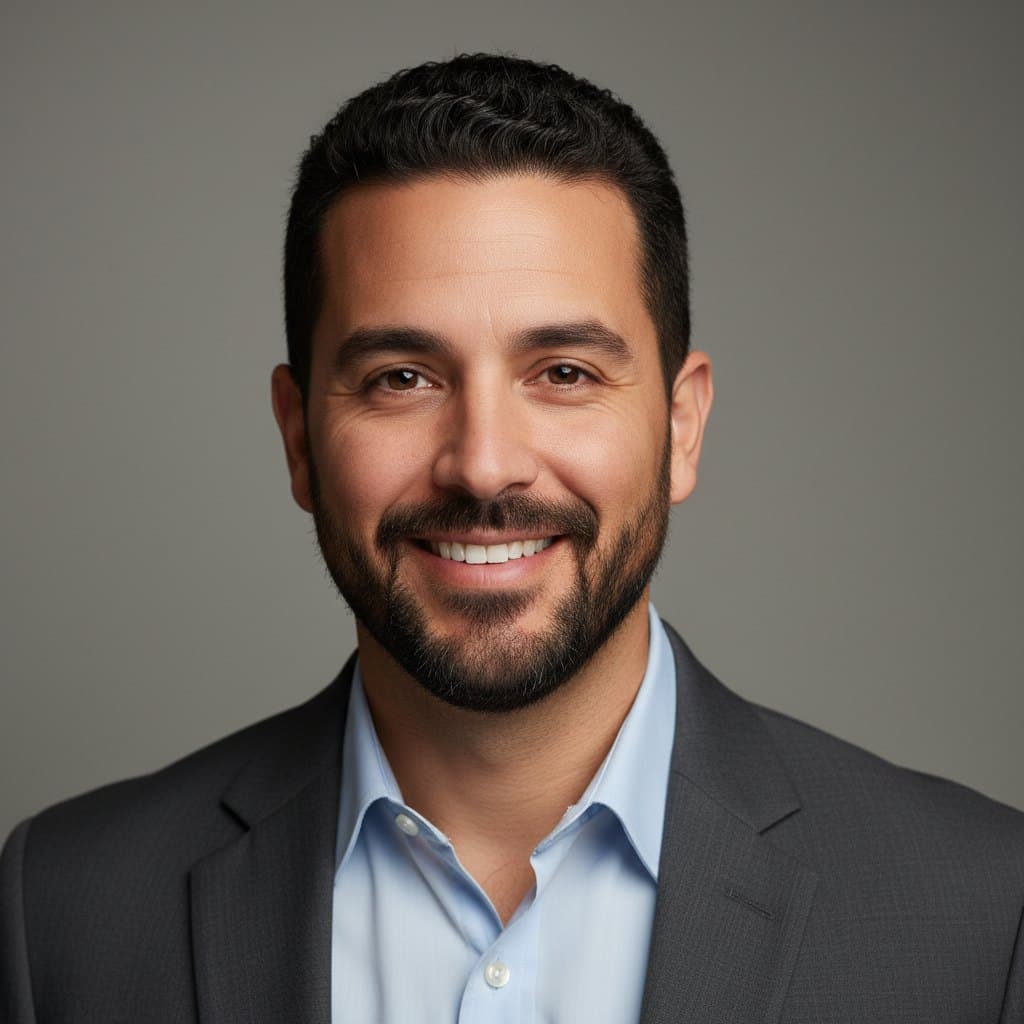
Adrian Reyes
Microphone & Audio Troubleshooting Lead, DevicePrep
Writes and maintains DevicePrep's microphone troubleshooting guides, covering OS permissions, device routing, Bluetooth mic profiles, and browser-level audio diagnostics across Zoom, Teams, and Google Meet.
Adrian Reyes leads microphone and audio troubleshooting at DevicePrep. He writes the guides people follow when their mic isn't working in Zoom, Teams, or Google Meet—and he maintains the Mic Test, Background Noise Test, Mic Clipping Test, and Echo Test tools that let users verify their audio before a call starts.
Adrian's focus is narrow by design: microphone issues. He covers OS-level microphone permissions on Windows, macOS, and mobile, browser-specific mic access prompts in Chrome, Firefox, Safari, and Edge, Bluetooth microphone profile switching (A2DP vs. HFP/HSP), USB mic power and enumeration problems, and the input gain and routing settings inside Zoom, Teams, and Meet that silently misdirect audio.
Before DevicePrep, Adrian spent years in enterprise AV support where diagnosing microphone failures was a daily task. He handled conference-room mic arrays, USB headset deployments across hundreds of remote employees, and the edge cases that waste the most time: mics that pass a system test but fail inside a meeting app, Bluetooth headsets that drop to mono hands-free mode mid-call, and browser tabs that silently hold exclusive mic access.
That hands-on experience shapes how he writes. Every microphone guide on DevicePrep starts with a live verification step using the Mic Test, isolates whether the problem is hardware, OS, browser, or app, and ends with a way to confirm the fix is real. Adrian's standard is that a reader should never finish a guide wondering whether their mic actually works now.
He also tracks how microphone behavior changes across OS updates, browser releases, and meeting app UI refreshes. When Windows 11 moved its mic privacy toggles, or when Zoom changed its audio device picker, Adrian updated the affected guides within days so the steps matched what people actually see on screen.
Adrian's editorial principle for audio content is specificity: naming the exact settings, toggles, and menus rather than saying 'check your audio settings.' He believes microphone troubleshooting fails when guides are vague, because the difference between a working mic and a silent one is usually a single toggle buried three menus deep.

Nikhil Desai
Webcam & Video Diagnostics Lead, DevicePrep
Owns DevicePrep's webcam and camera troubleshooting content—covering driver refresh, privacy toggles, browser camera permissions, and video quality diagnostics across Windows, macOS, and meeting apps.
Nikhil Desai leads webcam and video diagnostics at DevicePrep. He writes and reviews the guides that help people fix cameras that won't show up in Zoom, Teams, or Google Meet—and he maintains the Webcam Test, Webcam FPS Test, Webcam Lighting Test, and Webcam Flicker Test tools that give users an instant, verifiable preview before any call.
Nikhil's topic is camera and video troubleshooting, end to end. He covers webcam detection and driver issues on Windows 11 and macOS, browser-level camera permissions in Chrome, Safari, Firefox, and Edge, USB webcam enumeration and power problems, privacy shutters and hardware kill switches, and the camera negotiation behavior that varies by meeting app and browser version.
Before DevicePrep, Nikhil worked in support engineering for a remote collaboration product used by thousands of distributed teams. Most of the tickets that landed on his desk involved cameras: webcams that disappeared from device lists after sleep, laptops where the built-in camera showed a black screen after an OS update, and USB cameras that worked in one browser but not another. He built reproducible test matrices for those failure patterns and documented fixes that worked across hardware generations.
That experience is why every DevicePrep webcam guide follows a consistent pattern: start with the Webcam Test to confirm what the browser can see, isolate whether the problem is hardware, driver, OS permissions, or app settings, and end with a live preview that proves the camera is working. Nikhil's standard is that the reader should see themselves on screen before they close the guide.
He pays close attention to how camera behavior changes when OS updates land, when browsers ship new permission flows, and when meeting apps change their device picker UI. The guides he writes reflect tested, current behavior—not generic advice. When Windows 11 introduced a new camera privacy page or Chrome changed its permission prompt, Nikhil updated the relevant guides with current screenshots and steps.
Nikhil also covers video quality factors that sit outside the camera itself: lighting conditions that cause underexposure, CPU constraints that drop frame rates, and bandwidth limitations that force meeting apps to downscale resolution. The FPS and Lighting tools he helps maintain let users catch those problems before the call, not during it.

Simone Park
Network & Connectivity Diagnostics Lead, DevicePrep
Builds and maintains DevicePrep's network diagnostic tools—Ping Test, Upload Speed Test, and Network Test—and writes the guides that help users fix latency, jitter, packet loss, and bandwidth issues before video calls.
Simone Park leads network and connectivity diagnostics at DevicePrep. She builds the browser-based tools—Ping Test, Upload Speed Test, and Network Test—that measure the numbers behind call quality: latency, jitter, packet loss, and upload bandwidth. She also writes the troubleshooting guides that help people improve their connection before joining Zoom, Teams, or Google Meet.
Simone's focus is the network layer of video call quality. She covers Wi-Fi instability and band selection (2.4 GHz vs. 5 GHz vs. 6 GHz), latency and jitter diagnosis for real-time media, upload bandwidth requirements for HD and screen-share sessions, VPN and proxy impact on call performance, router congestion and Quality of Service (QoS) prioritization, and the gap between a speed test that looks fine and a call that stutters.
Before DevicePrep, Simone worked as a front-end engineer on a telehealth platform where call reliability was a patient-safety concern, not just a convenience issue. She learned firsthand that a network can pass a download speed test and still fail a video call—because real-time media cares about jitter and packet loss, not just throughput. That experience drives how DevicePrep's network tools are designed: they measure the specific metrics that affect calls, not just raw speed.
At DevicePrep, Simone designed the Ping Test to surface latency, jitter, and packet loss in a single run, and the Upload Speed Test to show whether upstream bandwidth is sufficient for outgoing video. She built both tools to run entirely in the browser with no plugins or uploads, so users can test quickly without privacy concerns.
Every network troubleshooting guide she writes follows a systematic pattern: measure a baseline with the diagnostic tools, change one variable (move closer to the router, switch Wi-Fi bands, pause a download, try ethernet), then re-test and compare. She's deliberate about teaching the method, not just the fix, because network problems recur and users need to isolate the cause each time.
Simone also tracks how meeting apps adapt to poor networks—Zoom's bandwidth negotiation, Teams' dynamic bitrate adjustment, Meet's fallback to audio-only—so the guides can set realistic expectations. When a user's upload is 1.5 Mbps, she doesn't just say 'get faster internet'; she explains what that bandwidth means for video quality and what settings to adjust in the meeting app to keep the call stable.

Kendra Holt
Speaker, Echo & Device Compatibility Lead, DevicePrep
Leads DevicePrep's speaker and echo troubleshooting content and cross-browser device testing—ensuring audio output guides, the Speaker Test, and the Echo Test work reliably across browsers, assistive technologies, and the real-world hardware people bring to calls.
Kendra Holt leads speaker and echo troubleshooting at DevicePrep and owns the cross-browser, cross-device testing process for every diagnostic tool on the site. She writes the guides that help people fix audio output problems—no sound from speakers, echo and feedback loops, wrong playback device selected—and she maintains the Speaker Test and Echo Test tools that let users verify their output before joining a call.
Kendra's topic is audio output and device compatibility. She covers speaker detection and routing on Windows and macOS, Bluetooth speaker and headset profile behavior (A2DP vs. HFP), echo and feedback diagnosis in Zoom, Teams, and Google Meet, browser-specific audio output selection (setSinkId support across Chrome, Firefox, Safari, Edge), and the interaction between accessibility tools like screen readers and audio playback that can create unexpected conflicts.
Before DevicePrep, Kendra worked in QA at a collaboration platform where her primary responsibility was testing audio and video features across browsers, devices, and assistive technologies. She built and maintained a test matrix covering Chrome, Safari, Firefox, and Edge on Windows, macOS, iOS, and Android—including older hardware, lower-spec laptops, and Bluetooth peripherals that produced the most unpredictable behavior. She also led the accessibility audit that brought the product to WCAG 2.1 AA compliance for all media features.
That testing background is core to her work at DevicePrep. She reproduces every reported issue—'Speaker Test doesn't play on Safari iPad,' 'Echo Test loops on Firefox with a Bluetooth speaker'—on the actual hardware and browser combination, then works with engineering to fix it. Her goal is that every DevicePrep tool produces the same reliable result regardless of what device, browser, or assistive technology someone is using.
Kendra's echo and feedback guides are built around a specific diagnostic method: identify whether you're the echo source by muting, isolate the audio path (speakers vs. headphones vs. Bluetooth), match devices in the meeting app, and remove loopback settings like Windows 'Listen to this device.' Each guide ends with a re-test step using the Speaker Test and Echo Test so the user can confirm the problem is gone before rejoining.
She also ensures that every DevicePrep tool is keyboard-navigable, provides accurate screen-reader announcements, and meets WCAG color-contrast standards. Kendra believes a diagnostic tool fails its purpose if it can't be used by the people who need it most—including users who rely on assistive technology to set up their devices for calls.
How we keep guides trustworthy
We publish people-first troubleshooting and maintain it as apps and OS settings change. See our editorial policy for how guides are written, reviewed, and updated.